Best Parental Controls for Smart TVs in 2026
Last reviewed: September 2026
Reviewed by: TVCP Product Team
Quick answer
If you are looking for the best parental controls on a smart TV, the operating system matters more than the logo on the front.
Google TV currently has the strongest built-in package for most families: a kids profile, approved apps, content restrictions, a daily viewing limit and bedtime controls. Fire TV is also good if your child stays inside an Amazon Kids profile. Samsung, LG, Roku and Apple TV all have useful parental controls, but they lean much more heavily on PINs, content ratings and app restrictions than flexible screen-time rules.
There is also a separate question that built-in controls do not always answer: can I control the TV from my phone?
On Android TV and Google TV, the answer can be yes. TVCP lets a parent lock the TV, block apps, start a countdown or change a schedule from an Android phone or iPhone. It does not run on Samsung, LG, Roku, Fire TV or Apple TV, so if you own one of those, the built-in options below are the ones to focus on.
The short version
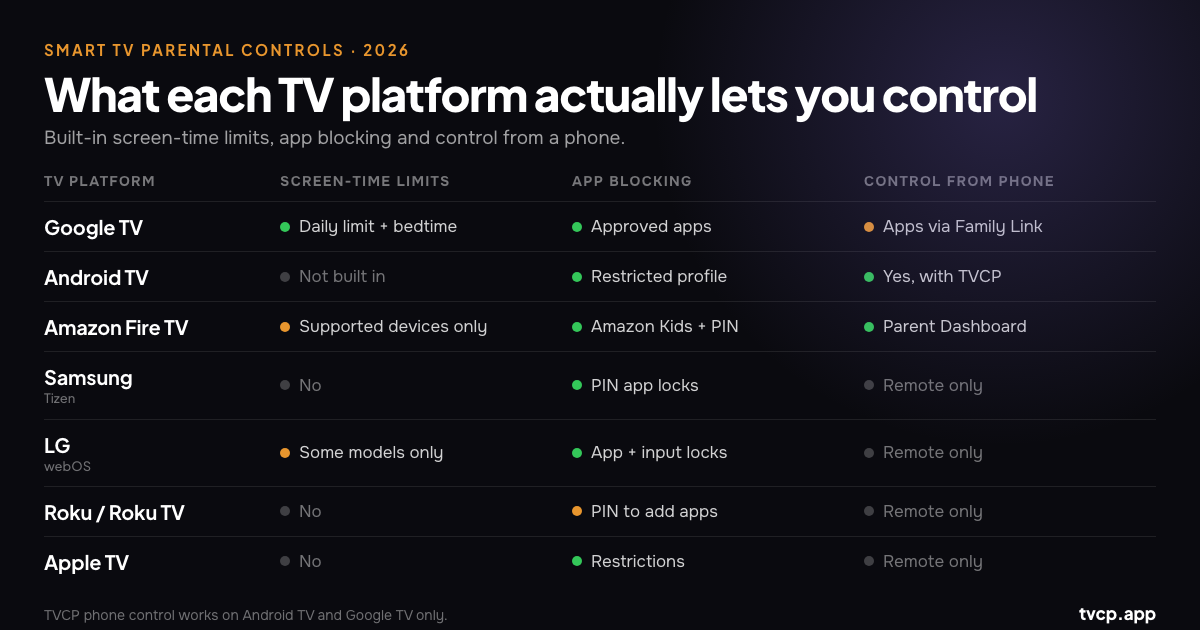
| TV platform | What you get | Phone control | Best for |
|---|---|---|---|
| Google TV | Kids profiles, approved apps, content controls, daily limits and bedtime | Family Link can manage apps; TVCP adds remote TV control | Best built-in parental controls overall |
| Android TV | Restricted profile with PIN and allowed apps; usually no built-in screen-time schedule | Yes, with TVCP | Parents who want remote locking, schedules and app blocking |
| Amazon Fire TV | PIN controls plus Amazon Kids profiles with time limits and schedules on supported devices | Amazon Parent Dashboard manages Kids settings | Strong built-in option if Amazon Kids is available on your device |
| Samsung (Tizen) | App locks, rating locks and PIN protection | SmartThings works as a remote, not a parental-control lock | Basic app and content restrictions |
| LG (webOS) | App, input and channel locks; some models also include Family Settings and usage limits | ThinQ works as a remote, not a parental-control lock | Families who mainly need PIN-based restrictions |
| Roku / Roku TV | PIN for purchases and adding apps; separate rating controls for Roku content and Live TV | Roku app is a remote | Purchase control and basic content filtering |
| Apple TV | Restrictions, age-based content controls and kid profiles on current tvOS | iPhone remote is only a remote | Families already using Apple’s ecosystem |
Before changing anything, check which TV system you actually have
This catches people out all the time. Saying “I have a TCL” or “I have a Hisense” is not enough, because the same manufacturer can sell different operating systems depending on the model and country.
A TCL or Hisense might run Google TV, Android TV, Roku or Fire TV. Philips is another good example: recent Philips ranges include both Google TV and Titan OS models, so you should not assume compatibility from the brand name or year alone.
The quickest way to check is to open Settings and look under System, Device Preferences or About. You can also look at the home screen:
- Google TV and Android TV use Google’s TV interface and Android app ecosystem.
- Fire TV has Amazon’s Fire TV home screen and Appstore.
- Samsung TVs run Tizen.
- LG TVs run webOS.
- Roku TVs have Roku’s home screen and channel grid.
- Apple TV is the separate Apple TV box running tvOS.
If you are checking whether TVCP will work, the important words are Android TV or Google TV.
How we checked this guide
We build TVCP specifically for Android TV and Google TV, so those are the platforms we work with directly. For the other TV systems in this guide, we check the current manufacturer documentation rather than relying on generic comparison lists.
That matters because smart-TV features move around, disappear from certain models, or vary by country. If you are buying a TV mainly for parental controls, verify the exact model before ordering it.
Google TV parental controls
For most families, Google TV is the easiest place to start because the built-in controls are already fairly complete.
A Google TV kids profile can limit the child to approved apps and age-appropriate content. You can also set a daily screen-time limit and a bedtime/downtime window. Google’s current controls let you set the daily allowance in 15-minute steps, up to eight hours, while bedtime is configured in 30-minute steps.
Family Link adds some useful phone-side management. From your phone you can review app activity and block or allow apps for the child. One slightly confusing detail is that the overall Google TV daily limit and bedtime still have to be changed on the TV itself; Family Link does not currently let you edit those TV limits remotely.
There is another limitation worth knowing: the rules apply to the kids profile. If the child gets into another profile, you are outside that protected environment, so make sure the adult profile is properly locked.
Is the built-in setup enough? For plenty of homes, yes. If you mostly want a fixed bedtime and a controlled list of apps, use the Google TV kids profile and save yourself the trouble of adding anything else.
If your rules change during the day, though, the built-in model can feel rigid. That is where TVCP is different: it controls the TV itself from your phone rather than relying only on the child staying inside a profile.
For a more focused walkthrough, see How to Block YouTube on TV.
Android TV parental controls
Android TV is the older Google TV platform, and it is still on a huge number of televisions and streaming boxes. You will find it on older Sony, Philips, TCL and Hisense models, Nvidia Shield devices and many generic Android TV boxes.
Its built-in parental controls are much more basic than Google TV’s. The main tool is a restricted profile: protect it with a PIN, then choose which installed apps are available inside it. The Play Store is also restricted while that profile is active.
What you do not get is the part many parents actually want to negotiate every day: time. There is no comparable built-in daily TV allowance, bedtime schedule or easy remote lock.
There is also a practical downside to restricted profiles: every change happens on the TV. If you decide YouTube is off for the afternoon, you need the remote, the PIN and a trip through Settings.
That is why Android TV is where TVCP makes the biggest difference. It adds the controls the platform itself is missing: remote lock and unlock, app blocking, countdowns and schedules from your phone.
If you only need a static list of allowed apps, the restricted profile is free and perfectly usable. If the argument is usually about how long the TV stays on, see our guide to screen-time limits on Android TV and Google TV.
Amazon Fire TV parental controls
Fire TV gives you two layers of parental control.
The first is the normal PIN-based Parental Controls menu. You can require a PIN for purchases and restrict access to certain content. The second is Amazon Kids, which gives a child a separate profile with approved content and time controls.
On supported Fire TV devices, Amazon Kids can set daily screen-time limits and schedules, including a bedtime. Parents can manage those settings through Amazon’s Parent Dashboard from a phone or browser, which is one of the better remote-management systems built into a TV platform.
There is an important compatibility footnote: Amazon says Kids profiles are not available on every Fire TV device, including Fire TV Cube devices and some televisions with Fire TV built in. Check your exact device before assuming the profile will be there.
What about the new Vega OS Fire TV Sticks?
Amazon is in the middle of a platform change. The Fire TV Stick 4K Select and the 2026 Fire TV Stick HD run Amazon’s newer Vega OS, and Amazon says future Fire TV Sticks will use Vega as well.
That matters if you rely on Android apps. Older Fire OS devices are based on Android; Vega is a different operating system. An app that exists for Android does not automatically run on Vega, and TVCP is not available for Fire TV.
Existing Fire OS televisions and older sticks do not suddenly stop working because of this change. It is mainly something to keep in mind when buying a new Fire TV device.
Best setup: use Amazon’s built-in PIN controls and, if your model supports it, an Amazon Kids profile.
Samsung TV parental controls (Tizen)
Samsung’s parental controls are straightforward rather than sophisticated.
You can lock individual apps behind the TV PIN and restrict programmes based on their rating. The default PIN is commonly 0000, so changing it should be the first thing you do.
For a younger child, app locking can be surprisingly effective. If YouTube or another app is the main problem, requiring the PIN just to open it removes a lot of friction without turning the whole TV into a child-only interface.
What Samsung does not give you is a built-in daily screen-time allowance or a parental schedule for the whole TV.
Samsung’s SmartThings app can control the television from your phone, including normal remote functions, but it should not be confused with a parental-control system. Turning the TV off from SmartThings does not create a lock that prevents a child from simply turning it back on.
Best setup: lock the apps you do not want freely available, use rating controls for broadcast content, and set up child profiles inside services such as Netflix, Disney+ and YouTube.
TVCP does not run on Samsung TVs.
LG TV parental controls (webOS)
LG puts most of its TV restrictions under Safety. Depending on the model and webOS version, you can lock apps, channels and external inputs behind a password.
Some LG televisions also include a Family Settings area with more interesting tools. LG documents a Usage Limit setting that can restrict when the TV is available and power it off if the password is not entered after the limit is reached. Family Settings on supported models can also include a volume limit and screen-time reporting.
The catch is model availability. LG’s menus and feature set vary, so do not buy a particular LG TV assuming that Usage Limit will be present just because another webOS television has it. Check the manual or the actual Settings menu for that model.
LG’s ThinQ app works well as a phone remote, but again, remote control is not the same as parental control. It does not turn the TV into a remotely lockable child device.
Best setup: use Safety to lock apps and inputs, enable Family Settings if your model has the features you need, and use child profiles inside the streaming apps themselves.
TVCP does not run on LG TVs.
Roku and Roku TV parental controls
Roku has parental controls, but they are easy to misunderstand because there is more than one PIN.
Your Roku account PIN can be required when somebody adds an app, starts a subscription or makes a purchase through Roku. It can also restrict age-rated content inside The Roku Channel.
A Roku TV parental-control PIN is separate. On a Roku television, it can restrict Live TV content by rating.
What neither of those gives you is a general daily screen-time limit or a system-wide app lock. Roku also points out that its parental controls do not automatically apply inside third-party streaming services, so Netflix, Disney+ and similar apps still need their own child-profile settings.
If there is an app you simply do not want available, removing it and protecting the account against new app installs is usually the cleanest approach.
Best setup: account PIN for purchases and new apps, Live TV rating controls if relevant, and kids profiles inside the streaming services.
TVCP does not run on Roku.
Apple TV parental controls
Apple TV has become better for families, but it still works differently from Screen Time on an iPhone or iPad.
The Apple TV 4K has Restrictions behind a passcode. You can use them to control purchases, rentals, apps, movies and shows by age rating or explicit-content settings.
Current tvOS versions also support managed profiles with an optional Kid profile setting. A kid profile can present age-appropriate content and search results based on the restrictions chosen by the managing adult profile.
What Apple TV still does not give you is the familiar iPhone-style daily Screen Time allowance for the whole television. There is no equivalent setting where you give the Apple TV two hours for the day and have the system lock when those two hours are gone.
The Apple TV Remote on an iPhone is just that: a remote. It does not remotely impose a parental lock on the box.
Best setup: use Restrictions, create a kid profile, and configure the parental controls inside each streaming app.
TVCP does not run on Apple TV.
The two controls every parent should set up, whatever TV they own
Even if your television has weak built-in parental controls, there are two things worth doing on almost every setup.
1. Use kids profiles inside the streaming apps
Netflix, Disney+, Prime Video and other major services have their own child profiles or maturity controls. In many cases you can also PIN-protect the adult profiles.
These controls solve a different problem from TV-level parental controls. They decide what can be watched inside that service. They do not decide how long the television stays on or what happens in another app.
2. Protect purchases and new app installs
If your TV platform has an account or store PIN, turn it on. It is one of those settings that feels unnecessary right up until a child buys something or installs three new apps.
A normal TV sleep timer can also be useful, but we would not count it as a parental control. Anyone holding the remote can usually cancel it or turn the TV back on.
Controlling Android TV or Google TV from your phone
This is the problem we built TVCP to solve.
TVCP uses two apps: one on the Android TV or Google TV, and TVCP Guardian on the parent’s Android phone or iPhone. Once the TV and phone are paired, you can manage the TV without standing in front of it with the remote.
You can:
- Lock or unlock the TV remotely.
- Start a countdown timer and have the TV lock when time runs out.
- Set allowed viewing schedules so the TV stays locked outside those hours.
- Block or unblock individual apps, including YouTube, games and browsers.
- Set a volume cap and use sleep-timer controls.
- Protect the TV-side controls with a 4-digit PIN.
We do not think every family with a Google TV needs another parental-control app. If the built-in kids profile does everything you need, keep using it.
TVCP is more useful when the rules change during the day: homework first, another 20 minutes today, YouTube off until dinner, TV locked while nobody is home. Those are awkward jobs for a fixed child profile but easy to do from a phone.
TVCP starts with a 7-day free trial, so you can test the setup on your own TV before deciding whether it is useful for your family.
Try TVCP on Android TV or Google TV
Frequently asked questions
Which smart TV has the best parental controls in 2026?
For built-in controls, we would pick Google TV. Its kids profile combines approved apps, content restrictions, daily viewing limits and bedtime controls in one system. Fire TV is also strong when Amazon Kids is supported on the device. Samsung, LG, Roku and Apple TV are more focused on PINs, ratings and app restrictions.
Can I control my smart TV from my phone for parental controls?
It depends on what you mean by “control.” Most TV brands have a phone app that works as a remote, but that does not necessarily let you impose a parental lock.
On Android TV and Google TV, TVCP can remotely lock the TV, block apps, start a timer and manage schedules. Google Family Link can also manage apps in a Google TV kids profile. Amazon’s Parent Dashboard can remotely manage Amazon Kids settings on supported Fire TV devices.
Can I remotely lock a Samsung or LG TV from my phone?
Not with the built-in parental controls. SmartThings on Samsung and ThinQ on LG can work as remote controls, but switching a TV off is different from locking it against being turned back on.
Use the TV’s PIN-based app and content locks instead.
Can I set a screen-time limit on a Samsung, Roku or Apple TV?
Not as a simple system-wide daily allowance with their standard built-in controls. Samsung and Roku are mainly PIN and content-control systems, while Apple TV has Restrictions and kid profiles but not iPhone-style Screen Time for the television.
Some LG models go further and include usage-limit features under Family Settings.
Does TVCP work on Fire TV?
No. Fire TV is a separate Amazon platform and TVCP is not distributed for it. Older Fire TV devices use Android-based Fire OS, while newer Fire TV Sticks are moving to Amazon’s Vega OS. Use Fire TV’s own Parental Controls and Amazon Kids features instead.
Does TVCP work on Roku, Samsung, LG or Apple TV?
No. TVCP is built for Android TV and Google TV.
Is my TCL or Hisense TV compatible with TVCP?
Possibly. Both companies sell televisions with different operating systems depending on the model and country. If the TV runs Android TV or Google TV, TVCP is compatible. If it runs Roku or Fire TV, it is not.
Are Netflix and YouTube kids profiles enough on their own?
They are worth using, but they only control what happens inside that app. They do not stop a child opening another app, keep the entire TV off after bedtime or create a TV-wide screen-time allowance.
That is why app-level and TV-level parental controls work best together.
The bottom line
Start with the controls you already have. Set a PIN, protect purchases, create a child profile where your TV supports one, and configure the kids settings inside the streaming apps your family actually uses.
If you are choosing a television specifically for parental controls, Google TV currently gives you the best built-in balance of content control and screen-time management. Fire TV is a good alternative if Amazon Kids is available on the model you are buying.
If the part you care about most is changing the rules from your phone, Android TV and Google TV give you another option. TVCP is built specifically for that: remote locking, schedules, timers and app blocking without needing the TV remote in your hand.
Official sources and further reading
- Google: Get started with a Google kids profile on Google TV
- Google: Parental controls on Google TV
- Amazon: Amazon Kids Parent Dashboard
- Samsung: Make your Samsung TV kid friendly
- LG: Family Settings
- LG: Parental Lock
- Roku: Set parental controls
- Roku: Create or change your Roku PIN
- Apple: Add, remove or delete profiles on Apple TV 4K
- Apple: Set parental controls on Apple TV 4K
- How to Set Parental Controls on Android TV
- How to Block YouTube on TV
- Screen Time Limits on Android TV & Google TV: A Parent’s Guide
- TVCP parental controls for Android TV and Google TV
Related guides
How to Block YouTube on Android TV & Google TV
Block YouTube on Android TV with a restricted profile or on Google TV with a kids profile. See how Family Link, Restricted Mode and TVCP differ.
How to Set Parental Controls on Android TV (2026)
Set up Android TV parental controls with a restricted profile and PIN, block apps, protect purchases, and see what changes if your TV actually runs Google TV.
Screen Time Limits on Android TV & Google TV (2026)
Set a Google TV daily limit and bedtime, see why Android TV has no built-in screen-time limit, and learn what Family Link can manage from your phone.