Screen Time Limits on Android TV & Google TV (2026)
Last reviewed: September 2026
Reviewed by: TVCP Product Team
The hard part about TV screen time usually is not choosing a number. It is making that number mean something when the remote is on the couch and somebody is asking for another episode.
Android TV and Google TV look closely related, but their built-in time controls are very different. If you are trying to set a daily TV limit, that distinction matters more than the brand name on the television.
Quick answer
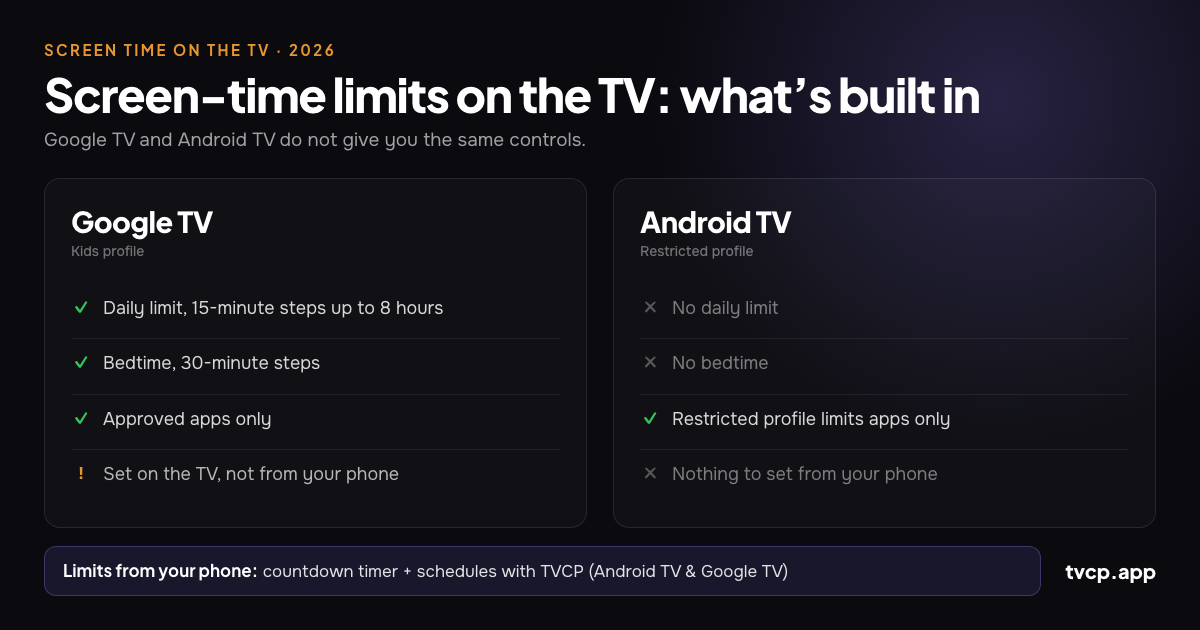
Google TV has built-in screen-time limits. Inside a kids profile, you can set a daily viewing limit in 15-minute steps, up to eight hours, plus a bedtime in 30-minute steps.
Android TV does not have a built-in daily screen-time limit or bedtime. Its restricted profile controls which apps a child can use, not how long the TV can be watched.
There is one catch on Google TV: the daily limit and downtime are configured on the television itself. Google says they cannot be set through Family Link. Family Link can still block and unblock apps remotely.
If you want the TV itself to lock on a countdown or schedule that you can change from your phone, TVCP adds that on Android TV and Google TV.
Google TV vs Android TV screen-time controls
| Control | Google TV | Android TV |
|---|---|---|
| Daily TV limit | Yes, inside a kids profile | Not built in |
| Bedtime / downtime | Yes | Not built in |
| Limit increments | 15 minutes, up to 8 hours | — |
| Bedtime increments | 30 minutes | — |
| Choose allowed apps | Yes | Yes, with a restricted profile |
| Block apps from a phone | Yes, with Family Link | Not with the built-in profile |
| Change the TV daily limit from a phone | No | No built-in limit to change |
| Lock the whole TV remotely | Not built in | Not built in |
Google TV: the built-in time controls are actually useful
If your television runs Google TV and kids profiles are available on your device and in your region, start there before installing anything else.
Create a kids profile from the profile menu on the Google TV home screen. During setup, you can choose which apps appear for the child. Once the profile exists, open:
Settings > Accounts & Profiles > your child’s profile > Screen time
From there you can set:
- Daily limit: choose the days and how much TV time is available. Google allows 15-minute increments up to eight hours.
- Bedtime: choose the days and the start and end of the viewing window. Times are available in 30-minute increments.
- Bonus time: when the daily allowance runs out, an adult can add more time from the timeout screen.
For a household with a predictable routine, this may be all you need.
Do not forget the profile lock
The screen-time rule belongs to the kids profile, not to the physical television. If a child can simply leave that profile and enter an unrestricted one, the limit no longer protects that session.
Google TV includes profile locking. Depending on your setup, you may see Kids lock on the child’s profile or Profile lock on an adult profile. The point is the same: require the adult PIN or Google Account credential when somebody tries to leave the protected profile or enter yours.
This is one of those settings that looks optional until the first time a child discovers the profile switcher.
Can Family Link change Google TV screen time from your phone?
Not the overall TV limit.
Family Link is useful with a Google TV kids profile, but the phone controls are narrower than many parents expect. Google currently lets you use Family Link to monitor app activity and block or unblock apps for the child. If an app has separate mobile and TV versions, Google even advises checking both versions.
What Family Link cannot do is set the Google TV daily limit, downtime or bonus time. Google says those controls have to be configured on Google TV itself.
So if today’s rule changes from one hour to ninety minutes, the built-in route still sends you back to the television.
Android TV: you can control apps, but not time
Android TV uses a different parental-control system. The main feature is a restricted profile.
Go to:
Settings > Personal > Security & Restrictions > Create restricted profile
Set a PIN, choose which installed apps the profile can use, then enter the restricted profile.
That is useful for a rule such as “no YouTube” or “only these three apps.” It is not a screen-time system. Android TV does not provide a comparable daily allowance, bedtime or scheduled TV lock in its built-in restricted-profile controls.
The other practical limitation is that changes happen on the TV. If YouTube is allowed in the morning but not until homework is finished in the afternoon, you have to edit the allowed-app list on the television and then change it back later.
For the full setup, see How to Set Parental Controls on Android TV.
Before adding another parental-control app, do these things first
A few built-in settings solve a surprising amount of the problem:
- On Google TV, create a kids profile and set the daily limit and bedtime.
- Lock profile switching so the child cannot simply move into an unrestricted profile.
- On Android TV, create a restricted profile and allow only the apps you are comfortable with.
- Protect Google Play purchases and content with the appropriate PIN and rating restrictions on the TV.
- Set up child profiles inside Netflix, Disney+, YouTube and other streaming services you actually use.
If that setup works for your family, stop there. Free built-in controls are better than adding another app you do not need.
What streaming-app controls can and cannot do
Netflix, YouTube and other streaming services have their own parental settings, but they solve a different problem.
A Netflix kids profile can limit content by maturity and keep adult profiles behind a PIN. YouTube offers supervised and kids experiences plus Restricted Mode for filtering some mature content. Those controls decide what happens inside that app.
They do not create a single daily allowance for the television. A child can leave one streaming app and open another.
YouTube Kids also has a built-in timer documented by Google for the YouTube Kids app. However, Google’s current TV-specific help does not clearly document that timer as a TV-wide control, so it is better treated as an app feature rather than something to rely on for managing the whole television.
If YouTube itself is the problem, see How to Block YouTube on Android TV & Google TV.
When controlling the TV from your phone becomes useful
There is a difference between a fixed rule and a rule that changes during the day.
A fixed rule is easy: one hour every weekday, bedtime at 8:30, YouTube never allowed. Google TV’s built-in profile can handle much of that.
The awkward cases are the ones parents actually end up negotiating: another 20 minutes today, TV off until homework is finished, no YouTube before dinner, lock the TV while nobody is home.
That is what TVCP is designed for. It uses one app on the Android TV or Google TV and TVCP Guardian on the parent’s Android phone or iPhone. After pairing the two, you can:
- Start a countdown and have the TV lock when time runs out.
- Set allowed viewing schedules so the TV stays locked outside selected hours.
- Lock or unlock the TV remotely.
- Block or unblock individual apps without editing a child profile on the television.
- Set a volume cap and use sleep-timer controls.
- Protect TV-side controls with a 4-digit PIN.
TVCP runs on Android TV and Google TV only. It does not run on Samsung, LG, Roku, Fire TV or Apple TV.
If Google’s built-in kids profile already handles your routine, keep using it. If you want to change the rule from your phone or you are on Android TV with no built-in time limit, TVCP starts with a 7-day free trial so you can test it on your own setup.
Try TVCP on Android TV or Google TV
What is a reasonable screen-time limit?
There is no single number that fits every child or every household.
The American Academy of Pediatrics’ current guidance deliberately moves beyond the old idea that one universal two-hour rule can answer everything. Its 5 C’s of media use asks parents to think about the child, the content, how media is used to calm, what it is crowding out, and ongoing communication.
That is a more useful way to think about a television limit too. Ask what the TV is replacing. Is bedtime slipping? Is homework getting pushed back? Is the child watching something worthwhile with the family, or endlessly scrolling through short videos?
A few practical rules tend to make any limit easier to live with:
- Make the cutoff predictable. A rule that changes every evening becomes a negotiation.
- Protect sleep and other activities first. The exact minute count matters less than whether TV is displacing sleep, movement, homework, play or family time.
- Watch together sometimes. You learn much more about what a child is actually watching when you are beside them.
- Automate the end when you can. A timer ending is less personal than an adult repeatedly walking in to announce that time is up.
Frequently asked questions
Can I set a daily screen-time limit on Android TV?
Not with Android TV’s built-in restricted profile. It controls which apps are available but does not include a daily TV allowance, bedtime or scheduled lock.
Does Google TV have a screen-time limit?
Yes, on supported Google TV devices with a kids profile. You can set a daily limit in 15-minute increments up to eight hours and a bedtime in 30-minute increments.
Can I change a Google TV time limit through Family Link?
No. Google says the overall daily limit, downtime and bonus time for a Google TV kids profile must be set on Google TV. Family Link can monitor activity and block or unblock apps from your phone.
Can I give my child extra time after the Google TV limit ends?
Yes. When the daily watch time expires, an adult can add bonus time from the timeout screen after verifying the adult account. Google allows bonus time in 15-minute increments, up to eight hours.
Can I lock Android TV or Google TV from my phone?
Not with the standard built-in TV controls. TVCP adds remote lock and unlock, countdowns, schedules and app blocking from a phone on Android TV and Google TV.
Is a TV sleep timer the same as a parental-control limit?
No. A normal sleep timer switches the TV off, but it generally does not create a PIN-protected restriction preventing somebody with the remote from turning it back on.
My TV is TCL, Hisense, Sony or Philips. Which instructions do I use?
Check the operating system rather than the brand. Manufacturers sell different platforms across models and countries. Open Settings > System, Device Preferences or About and look for Google TV or Android TV. For other platforms, see Best Parental Controls for Smart TVs in 2026.
The bottom line
If you have Google TV, start with its kids profile. The built-in daily limit and bedtime are real parental controls and, for a fixed routine, they may be enough.
If you have Android TV, the built-in restricted profile is about which apps a child can open, not how long the TV can be used.
The point where an extra tool becomes useful is when the rule needs to move with real life. If you want to add 20 minutes, block YouTube until dinner or lock the TV without walking back to the living room, that is a phone-control problem rather than a profile-setting problem.
Official sources and further reading
- Google: Use parental controls on Google TV
- Google: Get started with a Google kids profile on Google TV
- Google: Create a profile lock on Google TV
- Google: Block people from using specific apps or games on Android TV
- Google Play: Set up parental controls
- YouTube: Limit screen time on YouTube Kids
- American Academy of Pediatrics: Kids & Screen Time — How to Use the 5 C’s
- Best Parental Controls for Smart TVs in 2026
- How to Set Parental Controls on Android TV
- How to Block YouTube on Android TV & Google TV
- TVCP parental controls for Android TV and Google TV
Related guides
How to Set Parental Controls on Android TV (2026)
Set up Android TV parental controls with a restricted profile and PIN, block apps, protect purchases, and see what changes if your TV actually runs Google TV.
Best Parental Controls for Smart TVs in 2026
Compare smart TV parental controls for Google TV, Android TV, Fire TV, Samsung, LG, Roku and Apple TV, including screen time and phone control.
How to Block YouTube on Android TV & Google TV
Block YouTube on Android TV with a restricted profile or on Google TV with a kids profile. See how Family Link, Restricted Mode and TVCP differ.