How to Set Parental Controls on Android TV (2026)
Last reviewed: September 2026
Reviewed by: TVCP Product Team
Android TV does have parental controls, but the feature is easy to miss because Google calls it a restricted profile rather than a child profile.
Once it is set up, the TV shows only the apps you approve and protects the exit with a PIN. That works well for controlling what a child can open. It does not give you a daily TV allowance, a bedtime or a remote lock from your phone.
There is also one source of confusion worth clearing up before you touch Settings: Android TV and Google TV are not the same parental-control system.
Quick answer
To set parental controls on Android TV:
- Open Settings.
- Go to Personal > Security & Restrictions.
- Select Create restricted profile.
- Set a PIN your child does not know.
- Choose the apps the profile is allowed to use.
- Enter the restricted profile.
While the restricted profile is active, Google says the user cannot access or make purchases in the Play Store and cannot use third-party apps that do not use Google sign-in.
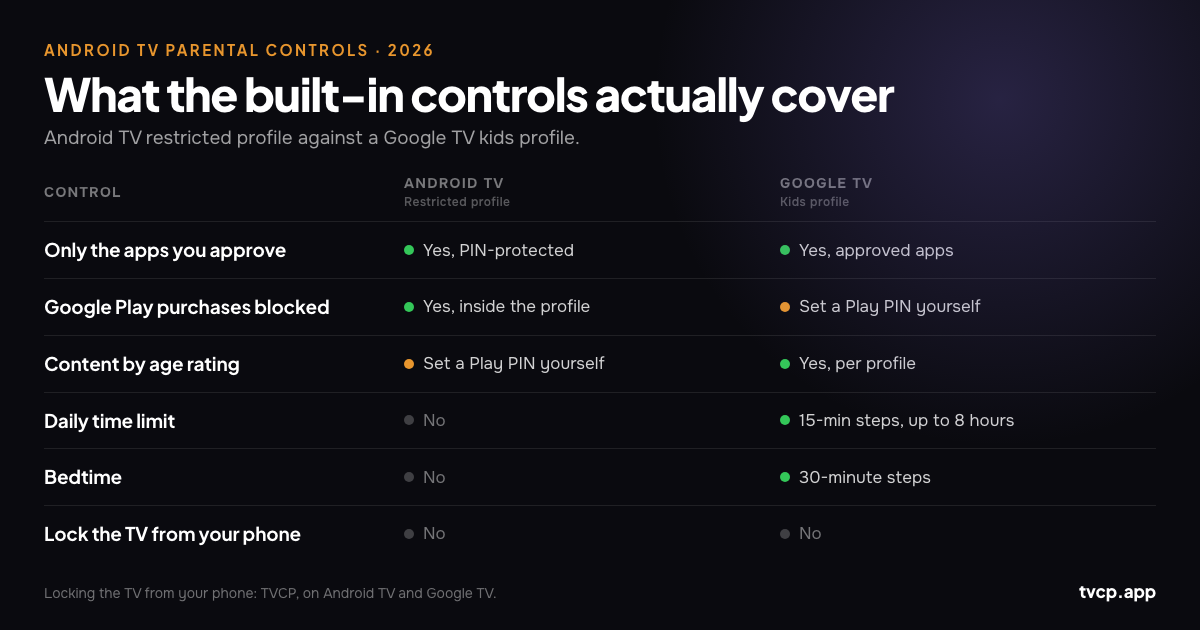
What Android TV does not include is a built-in daily screen-time limit, bedtime schedule or phone-controlled TV lock.
If your Settings menu has Accounts & Profiles and an Add a kid option instead, you are probably using Google TV. Skip to the Google TV section below.
Android TV vs Google TV parental controls
| Control | Android TV | Google TV |
|---|---|---|
| Child / restricted environment | Restricted profile | Kids profile |
| Choose allowed apps | Yes | Yes |
| PIN / profile protection | Yes | Yes |
| Daily screen-time limit | No | Yes, on supported kids profiles |
| Bedtime / downtime | No | Yes |
| Block apps from a phone | No built-in remote control | Yes, with Family Link |
| Lock the whole TV from a phone | No | No |
First check: is it really Android TV?
People use “Android TV” as a generic name for almost any television that runs Google’s apps. For parental controls, that can send you into the wrong menu entirely.
A quick way to tell the two systems apart is to look in Settings:
- Android TV: look for Personal > Security & Restrictions and the option to create a restricted profile.
- Google TV: look for Accounts & Profiles and the ability to add a child/kids profile.
The exact menu wording can move around between manufacturers and software versions, so do not worry if a Sony, Philips, TCL, Hisense or Nvidia Shield uses slightly different labels.
If the TV has a Google-style home screen but neither path matches, check Settings > System, Device Preferences or About for the operating-system name and then check the manufacturer’s support page for that model.
If you are comparing TV platforms before buying, see Best Parental Controls for Smart TVs in 2026.
Step by step: create a restricted profile on Android TV
Google’s standard Android TV path is:
- From the Android TV home screen, open Settings.
- Scroll to Personal.
- Select Security & Restrictions.
- Choose Create restricted profile.
- Create a PIN. You will need this PIN to leave the restricted profile later.
- Work through the installed apps and allow only the ones the child can use.
- Press Back when you are finished.
- Select Enter restricted profile.
The result is simple: when that profile is active, the child only sees the apps you approved.
For a younger child or a TV that mostly runs a few streaming apps, that can be surprisingly effective.
What the restricted profile actually blocks
The restricted profile does more than hide icons.
Google says that while it is active, the user cannot:
- Access or make purchases in the Google Play Store app.
- Use third-party apps that do not use Google sign-in.
That first point is useful because it stops the obvious “I will just reinstall the app” workaround inside the restricted profile.
The second point is less convenient. Some apps your family uses may disappear or stop working in the restricted profile even though you would have been happy to allow them. Test the apps you care about before assuming the profile can replace the normal one for everyone.
Do not lose the PIN
This deserves its own heading because the consequence is unusually severe.
If you forget the restricted-profile PIN, Google’s documented way out is a factory data reset. That wipes saved apps, channels and settings from the television or Android TV device.
Save the PIN in your password manager before you hand the remote back.
Add Google Play parental controls too
The restricted profile controls which installed apps can be used. Google Play parental controls are a separate layer for content ratings and purchases.
On the TV’s Play Store, open the account/profile menu and look under Settings > Family > Parental controls or Content restrictions, depending on the current Play Store version. Set a PIN and choose the highest rating you want to allow for apps, games, movies or TV content where those categories are available.
Two details matter:
- Google Play content restrictions are set per device. Configuring them on your phone does not automatically configure the TV.
- Content that was already downloaded can behave differently from new content, so review what is already installed as well as the store restriction.
Purchase verification is worth enabling separately so a child cannot buy something from the couch just because an adult account is signed in.
The three things Android TV parental controls do not solve
The restricted profile is good at one job: app access. Most frustration comes from expecting it to do three other jobs it was never designed for.
1. There is no built-in daily TV limit
Android TV does not have a Google TV-style daily viewing allowance or bedtime inside its restricted-profile controls.
If the household rule is “two hours of TV today” rather than “these are the apps you may use,” the built-in profile cannot enforce that by itself. See Screen Time Limits on Android TV & Google TV for the difference.
2. Every app change happens on the television
A permanent YouTube block is easy. A rule such as “YouTube after homework” is more annoying because you have to return to the TV, enter the profile settings, change the allowed-app list and reverse it later.
3. It does not remotely lock the whole TV
A restricted profile is not an on/off switch for the television. Android TV does not include a built-in parental command that lets you lock the TV itself from another room or while you are away.
That distinction matters if the problem is not which app is open but whether the TV should be usable at all.
How to block YouTube on Android TV
If YouTube is the specific problem, the restricted profile can handle it.
When you build or edit the profile, leave YouTube out of the allowed-apps list. The child will not have access to it inside that profile.
Do not confuse this with YouTube Restricted Mode. Restricted Mode is a content filter intended to screen out some potentially mature videos. It does not remove the YouTube app.
We cover the difference, including Google TV and Family Link, in How to Block YouTube on Android TV & Google TV.
If your TV is actually Google TV, use a kids profile instead
Google TV has a newer parental-control system and is more capable out of the box.
A kids profile can:
- Show only approved apps.
- Apply content restrictions to the child’s Google TV experience.
- Set a daily viewing limit in 15-minute increments, up to eight hours.
- Set a bedtime / downtime window in 30-minute increments.
- Use a Kids lock so leaving the child profile requires adult verification.
Family Link adds some phone-side management. Google currently lets parents monitor app activity and block or unblock apps for the child’s Google TV profile through Family Link.
The part Family Link does not control remotely is the overall Google TV daily limit, downtime and bonus time. Google says those settings must be changed on Google TV itself.
So if you came here looking for Android TV instructions and discovered you actually have Google TV, do not create a restricted profile. Use the kids-profile tools built for that platform.
When it makes sense to control the TV from your phone
If your rules are fixed, the built-in tools are often enough.
A restricted profile with Netflix and Disney+ allowed and YouTube blocked can sit there for months without needing attention. There is no reason to complicate that setup.
Phone control becomes useful when the rules change: twenty more minutes today, YouTube off until dinner, TV locked during homework, viewing allowed again on Saturday morning.
TVCP is built around those cases. It uses a TV app on Android TV or Google TV plus TVCP Guardian on the parent’s Android phone or iPhone. Once paired, you can:
- Lock or unlock the TV remotely.
- Start a countdown and have the TV lock when time runs out.
- Set allowed viewing schedules.
- Block or unblock apps such as YouTube, games and browsers.
- Set a volume cap and use sleep-timer controls.
- Protect TV-side settings with a 4-digit PIN.
TVCP runs on Android TV and Google TV only. It does not support Samsung Tizen, LG webOS, Roku, Fire TV or Apple TV.
Use the built-in restricted profile first. If the only thing missing is the ability to change or enforce the rule from your phone, TVCP has a 7-day free trial so you can see whether that extra layer is useful in your home.
Try TVCP on Android TV or Google TV
Frequently asked questions
Does Android TV have parental controls?
Yes. Android TV supports a PIN-protected restricted profile where you choose which installed apps can be used. Google Play content and purchase controls can add another layer.
Can I set a daily time limit on Android TV?
Not with the built-in restricted-profile controls. Android TV manages app access but does not provide a Google TV-style daily viewing limit or bedtime.
Can I block YouTube on Android TV?
Yes. Leave YouTube out of the restricted profile’s allowed-apps list. That blocks the app inside the profile. YouTube Restricted Mode is different: it filters some content but leaves the app available.
What happens if I forget the Android TV restricted-profile PIN?
Google’s documented recovery is a factory data reset, which erases saved apps and settings. Save the PIN somewhere secure.
Why can I not find Security & Restrictions on my TV?
The TV may be running Google TV rather than Android TV, or the manufacturer may have moved the menu. Look for Accounts & Profiles and an Add a kid option. If neither path matches, check the operating-system name under About and consult the model’s support page.
Can Family Link control Android TV parental settings?
Family Link’s Google TV support is stronger than its Android TV restricted-profile support. On a Google TV kids profile, Family Link can monitor activity and block or unblock apps. Android TV’s restricted profile itself is created and edited on the television.
Can I lock Android TV from my phone?
Not with Android TV’s built-in parental controls. TVCP adds remote lock and unlock, timers, schedules and app blocking from a phone on Android TV and Google TV.
Does TVCP work on Samsung or LG TVs?
No. TVCP is built for Android TV and Google TV and does not run on Samsung Tizen, LG webOS, Roku, Fire TV or Apple TV.
The bottom line
Android TV parental controls are simpler than the name suggests: create a restricted profile, choose the apps, protect it with a PIN and keep that PIN somewhere safe.
If the main concern is which apps a child can use, start there. It is free, built in and may be all you need.
If the concern is how long the TV can be used, or you want to change rules without standing in front of the screen, Android TV’s built-in controls stop short. That is where a timer, schedule or phone-controlled lock becomes a separate requirement rather than another hidden Android TV setting.
Official sources and further reading
- Google: Block people from using specific apps or games on Android TV
- Google: Use parental controls on Google TV
- Google: Get started with a Google kids profile on Google TV
- Google: How Google TV and Android TV work
- Google Play: Set up parental controls
- YouTube: Turn Restricted Mode on or off
- Best Parental Controls for Smart TVs in 2026
- How to Block YouTube on Android TV & Google TV
- Screen Time Limits on Android TV & Google TV
- TVCP parental controls for Android TV and Google TV
Related guides
Screen Time Limits on Android TV & Google TV (2026)
Set a Google TV daily limit and bedtime, see why Android TV has no built-in screen-time limit, and learn what Family Link can manage from your phone.
Best Parental Controls for Smart TVs in 2026
Compare smart TV parental controls for Google TV, Android TV, Fire TV, Samsung, LG, Roku and Apple TV, including screen time and phone control.
How to Block YouTube on Android TV & Google TV
Block YouTube on Android TV with a restricted profile or on Google TV with a kids profile. See how Family Link, Restricted Mode and TVCP differ.